Guide · Wi-Fi QR for iPhone
Print a Wi-Fi QR code sign from your iPhone: Wi-Fi QR 1.8
Wi-Fi QR 1.8 prints a guest Wi-Fi sign straight from your iPhone. It also prints a page of 8 cut-out cards.
 Abdelrahman Eita · · 4 min read
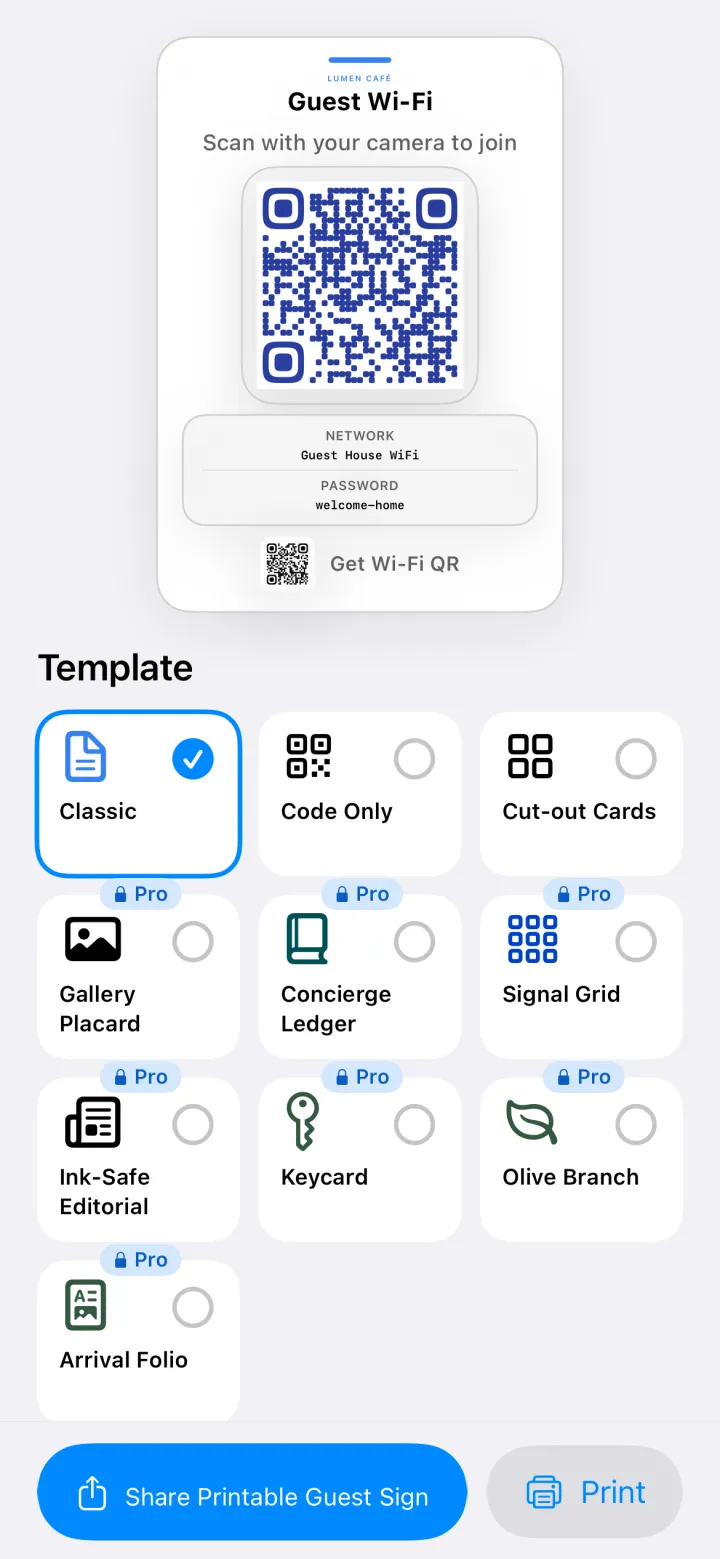
To print a Wi-Fi QR code sign, you need a code, a layout and a printer. Wi-Fi QR does all three on your iPhone. A printed sign lets guests join your network with one scan. They point the iPhone camera at the QR code and tap the prompt. They do not type the password. Wi-Fi QR makes the code and the sign. Version 1.8, released on 12 November 2026, adds printing from the app.
In short
- Make the sign in five steps, from the QR code to the printed page.
- Print a sign or a page of 8 cut-out cards from the app.
- Add a place name, such as your rental. It prints above the headline.
- Wi-Fi QR Pro is a one-time unlock for more templates and styles.
- For Airbnb hosts: what to put on the sign, and where.
How to print a Wi-Fi QR code sign on iPhone
- Open Wi-Fi QR and add your network. Enter the network name, the security type and the password. The QR code appears.
- Optional: in the same form, fill in Place Name. Use the name of your rental or your cafe.
- Tap Print Guest Sign. Choose a template and a paper size: 4 × 6 in, 5 × 7 in, A4 or US Letter.
- Tap Print to print the sign. Or choose Cut-out Cards to print 8 cards on one page.
- Put the sign or the cards where guests will see them.
To send the sign as a file instead, tap Share Printable Guest Sign. The app makes a PDF. The Print button shows only on an iPhone that can print. You can also share the QR code alone. The guide How to share your Wi-Fi with a QR code on iPhone explains the other ways to share.
Print a sign or 8 cut-out cards
Before 1.8, you shared the sign as a PDF and printed it from another app. Version 1.7 made the share sheet print work. Now the print screen has its own Print button.
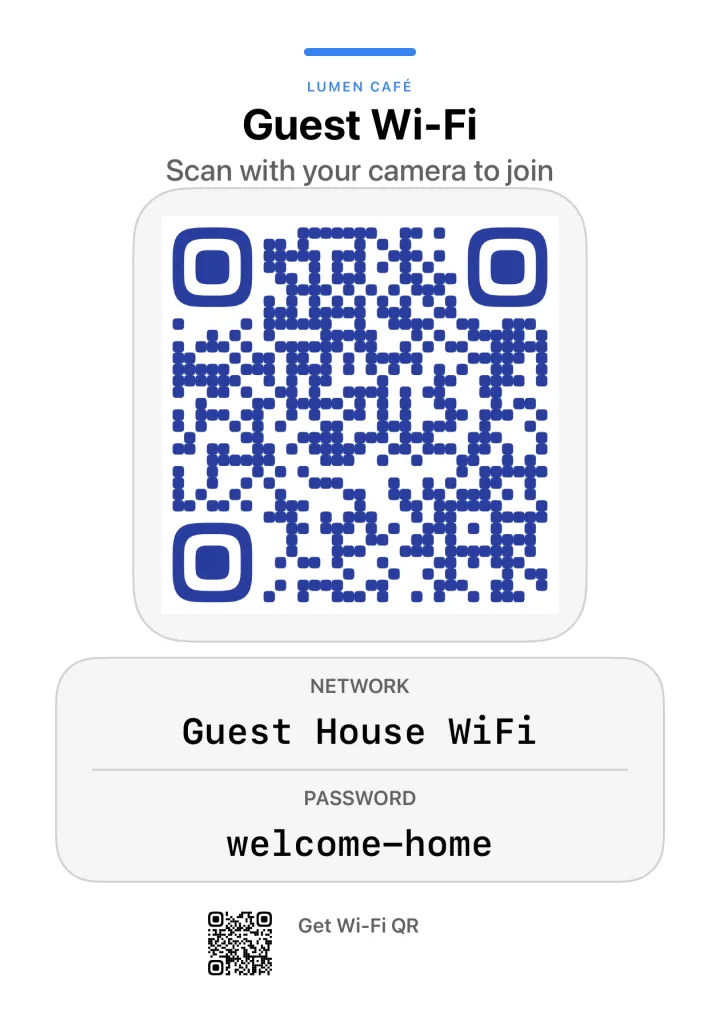
The Classic template is the standard sign. It has a title, a short line of text, the QR code, and the network name and password in large type. You can edit the title and the text. Code Only prints the QR code alone.
The Cut-out Cards template puts 8 cards on one page. Each card has a QR code, the network name and the password. Dashed lines show where to cut. This template prints on A4 or US Letter. Use the cards for a welcome binder, a drawer, or a stack at a counter.
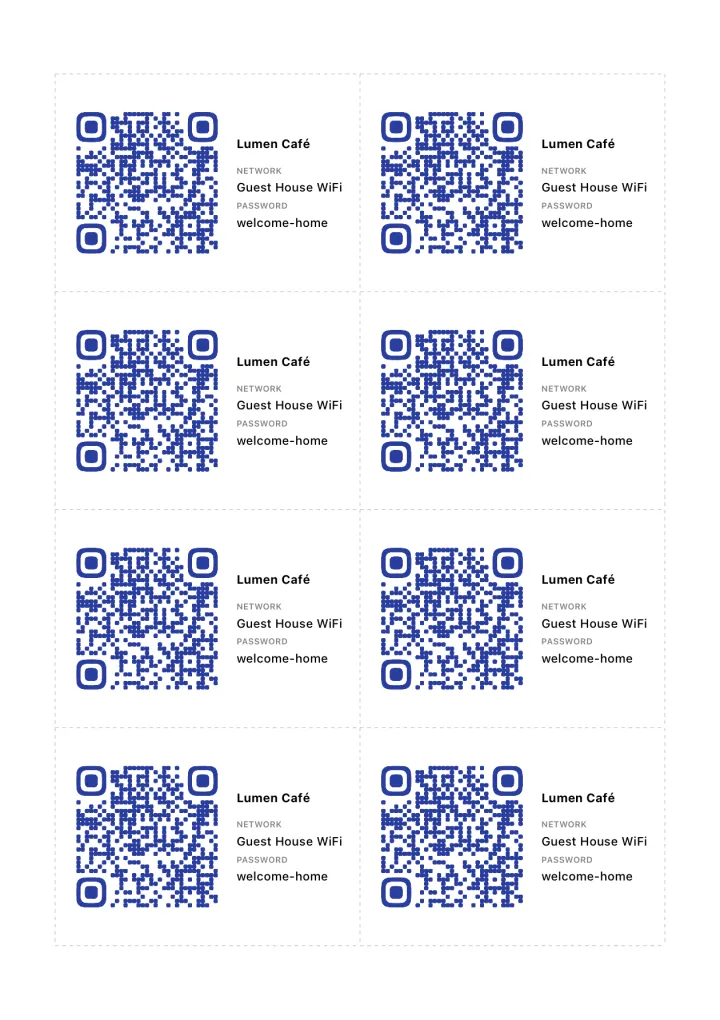
If a name or password is too long for a card, the cards show only the QR code. The app tells you when this happens.
Add a place name
Version 1.8 adds an optional Place Name field to the network form. The name prints above the headline on guest signs. It also shows on the cut-out cards in the picture above. The app saves the place name with the network, so you enter it once.
Wi-Fi QR Pro
Printing is free. Wi-Fi QR Pro is a one-time unlock, and it is not a subscription. It adds:
- 7 more print templates, such as Gallery Placard, Concierge Ledger and Keycard.
- 3 QR styles: Midnight, Sand and Meadow.
- Signs without the app link. This hides the small app QR code and the words "Get Wi-Fi QR" on the Classic sign.
Classic, Code Only and Cut-out Cards stay free. You can preview Pro templates for free. You need Pro to share or print them. Some Pro templates have a fixed paper size. Keycard is 4 × 6 in, Olive Branch is 5 × 7 in, and Arrival Folio is US Letter.
For Airbnb and rental hosts
If you host on Airbnb, read the Airbnb WiFi sign guide. It explains what to put on the sign, where guests look for it, and which size to print. If you change the router password, print a new sign.
Also in 1.8
Layouts are better at larger text sizes. Wi-Fi QR still has no account and no ads. The privacy policy has the details.
Get Wi-Fi QR
Wi-Fi QR is free on the App Store for iPhone. Download it or update it on the App Store. If a sign does not print correctly, write to me through Wi-Fi QR support.