Guide · Wi-Fi QR for iPhone
How to share your Wi-Fi with a QR code on iPhone
An iPhone can share a Wi-Fi network in three ways. The best one depends on who joins: a friend next to you, a guest with an Android phone, or every guest who stays in your home this year.
 Abdelrahman Eita · · 5 min read
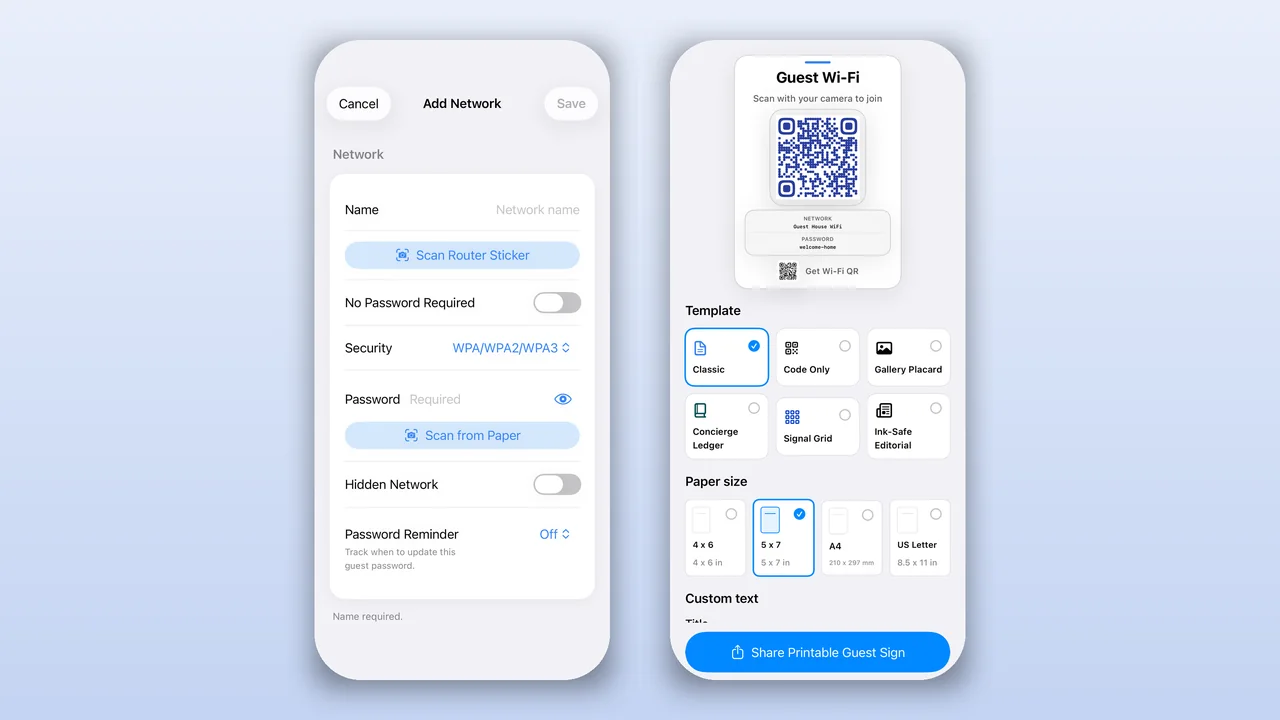
I built Wi-Fi QR because I could not find a good way to do this on my own iPhone. Since then, iOS has added two ways of its own. This guide shows all three, what each one can and cannot do, and how to fix a code that does not work.
In short
- The Passwords app (iOS 18 and later): show a QR code on your screen for a network your iPhone already joined.
- Share Password: send the password to a nearby iPhone, iPad or Mac. No QR code, Apple devices only.
- A QR code you keep: make a code for any network, then print it or send it as an image. This works for Android guests too.
1. Show a QR code from the Passwords app
In iOS 18 and later, the Passwords app keeps the Wi-Fi networks that your iPhone joined, and it can show each one as a QR code.
- Open the Passwords app.
- Tap Wi-Fi, then tap the network.
- Tap Show Network QR Code.
- Hold your screen up, and let the other person scan it with their camera.
This is the fastest way when the guest is in front of you. But it has limits:
- It shows only networks that this iPhone already joined.
- The code is on your screen only. You hand over or hold up your phone each time someone asks.
- You cannot make a sign from it for a room, a desk or a rental.
2. Share the password with a nearby Apple device
If the other person has an iPhone, iPad or Mac, iOS can send the password without a QR code.
- Unlock your iPhone and connect it to the Wi-Fi network.
- On the other device, open the Wi-Fi settings and tap the same network.
- On your iPhone, tap Share Password when it appears, then tap Done.
For this to work, both devices need Wi-Fi and Bluetooth on, and they must be close together. Each person must also have the other's Apple Account email address in Contacts. It does not work for Android phones, laptops with Windows, or a guest who arrives when you are not home.
3. Make a QR code you can print or send
For guests, a code that stays in one place works best: a card on the table, a page in the welcome book, or an image in your check-in message. Wi-Fi QR makes this code on iPhone and iPad.
- Install Wi-Fi QR. It is free, with no account and no ads.
- Add a network. Type the network name and password, or tap Scan Router Sticker to read them from the router label.
- Choose the security type. Turn on Hidden Network if the network does not show in the Wi-Fi list.
- Share the QR code as an image, or make a printable sign in one of six styles and four paper sizes.
This works for any network that you know the password of, also one your iPhone never joined, a WEP router or a hidden network. The network details stay on your device. Hosts can find tips about what to put on a sign and where to put it in the Airbnb WiFi sign guide.
Which way should you use?
| Way | Needs | Android guests | Print a sign | Best for |
|---|---|---|---|---|
| Passwords app QR code | iOS 18 or later, a network this iPhone joined | Yes, they scan your screen | No | One guest who is with you |
| Share Password | Two Apple devices, close together, saved in Contacts | No | No | Family and friends with Apple devices |
| Wi-Fi QR | iOS 17 or later, the network name and password | Yes | Yes, six styles and four sizes | Rentals, guest rooms, cafes and offices |
How guests scan the code
- iPhone and iPad: open the Camera app, point it at the code and tap the banner to join.
- Android: open the camera or Google Lens and point it at the code. On many phones, the QR icon in the Wi-Fi settings scans it too.
- Laptops and TVs: these cannot scan. Keep the network name and password in text next to the code.
What is inside a Wi-Fi QR code
The code holds one short line of text. For a normal home network, it looks like this:
WIFI:T:WPA;S:Lake Cabin;P:the-password;;
Tis the security type:WPAfor WPA, WPA2 and WPA3 Personal,WEPfor old routers, ornopassfor an open network.Sis the network name, andPis the password.H:truemarks a hidden network.
If the name or the password contains \, ;, ,, : or ", the code must put a backslash in front of that character. A generator that skips this step makes a code that the camera reads, but the phone then cannot join. I tell more about how the app started in the story behind Wi-Fi QR.
When the code does not work
- The camera shows no banner. On iPhone, open Settings, then Camera, and make sure that Scan QR Codes is on. Hold the phone a little further away, and make sure that no glare covers the code.
- The phone does not join. Check the password and the security type. Network names and passwords are case-sensitive.
- It worked before, but not now. The password or the router changed. Make a new code and print a new sign.
- The network is hidden. The code must mark it as hidden, or the phone looks for a network that it cannot see.