Net
The network name
Write it exactly as the phone shows it. Network names are case-sensitive, so "BeachHouse" and "beachhouse" are two different names.
Guests ask for the WiFi password first. A good sign answers before they ask: the network name, the password and a QR code that they scan with the phone camera. This guide tells you what to put on the sign, where to put it and how to make one in a few minutes.
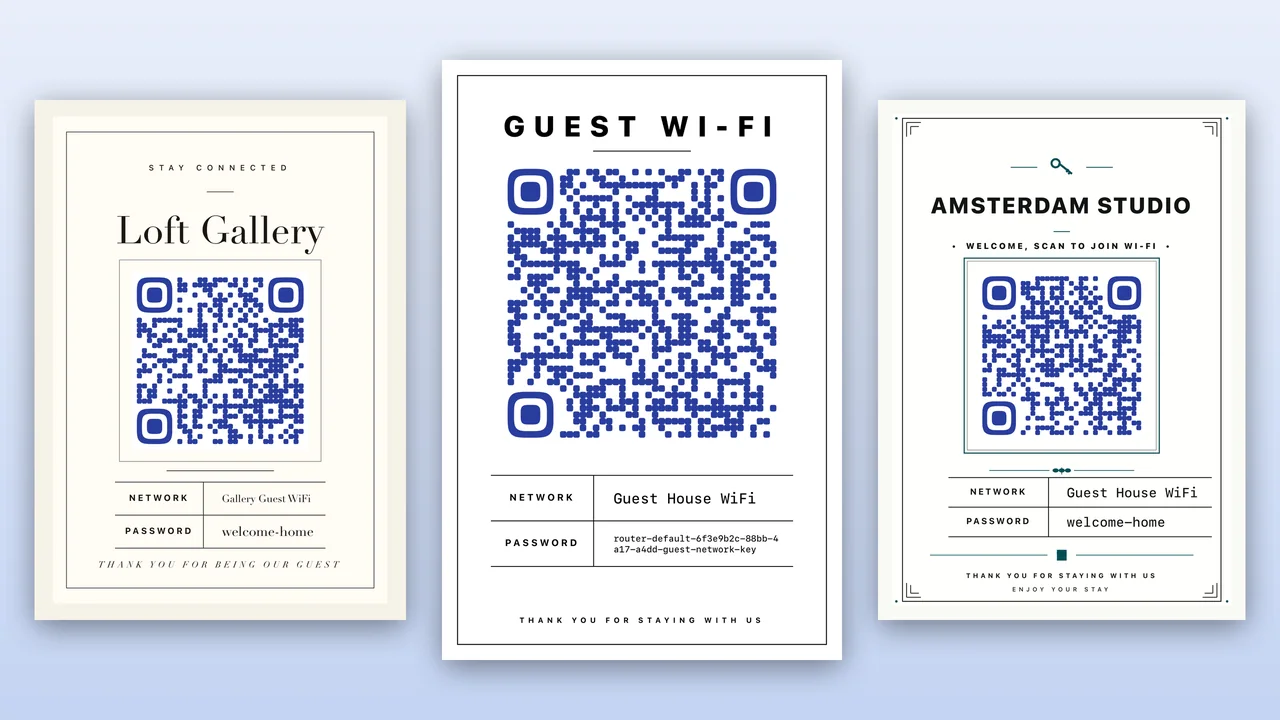
Keep the sign short. Guests read it from a table or a wall, often with a phone already in one hand.
Write it exactly as the phone shows it. Network names are case-sensitive, so "BeachHouse" and "beachhouse" are two different names.
Use a clear font and enough space. In many fonts, O and 0, or l, I and 1, look the same. Every character must stay readable, also on a long password.
Guests point the camera at the code and tap Join. There is no typing and no wrong letter. Keep the name and password in text too, for laptops and TVs.
"Open the camera and point it at the code." If guests may need to restart the router, say where it is.
"Welcome to the Lake Cabin" makes the card part of the home, and tells guests that the card is for them.
Add a short footer, for example "WiFi problems? Message us in the Airbnb app." Guests then know what to do first.
Most guests look for the WiFi in the first ten minutes. Put the sign on that path, and put a second copy where they use the internet most.
A WiFi card for Airbnb does not need to be large. It needs a QR code that the camera can read from an arm's length away.
A Wi-Fi QR code holds the network name, the security type and the password. The phone reads them and joins the network.
A WiFi sign shows the password to every guest. Set up the network for that, and the sign is safe to leave out.
Wi-Fi QR makes the QR code and the printable sign together, on your iPhone or iPad. Your network details stay on your device.
Install Wi-Fi QR from the App Store. It is free for iOS 17 or later, with no account and no ads.
Type the name and password, or tap Scan Router Sticker. Choose WPA or WEP. The editor checks both fields before you save.
Classic, Code Only, Gallery Placard, Concierge Ledger, Signal Grid or Ink-Safe Editorial.
4 x 6 in, 5 x 7 in, A4 or US Letter. Add your own title and footer. Long passwords shrink and wrap to fit.
Tap Print in the share sheet, or share the PDF for your welcome book or a print shop.
Scan the printed sign with an iPhone and an Android phone before the next guest arrives.
The network name, the password, a Wi-Fi QR code and one line that tells guests to scan the code with the phone camera. A welcome title and a short footer are optional.
No. The iPhone Camera app and most Android cameras read Wi-Fi QR codes. Guests point the camera at the code and tap Join or Connect.
A 4 x 6 in or 5 x 7 in card fits a frame on a table, a shelf or a wall. Use A4 or US Letter for a page in the welcome book or house manual.
Yes, if you use a guest network and keep the sign inside the home, where only guests see it. Change the password when you need to, and print a new sign.
No. The QR code holds the password. After each change, make a new code and print a new sign.
With a template, you make the QR code in a different tool and paste it in. Wi-Fi QR makes the code from your network details and puts it on the sign, so the code and the text always agree.
Yes. Wi-Fi QR is free on iPhone and iPad, with no ads, no account and no in-app purchases.