Release notes · Wi-Fi QR for iPhone
Wi-Fi QR 1.7: guest signs that fit, WPA or WEP, and smarter sticker scans
A release about trust: the codes you make should always connect, and the signs you print should always show the full network name and password.
 Abdelrahman Eita · · 4 min read
Wi-Fi QR makes a QR code for your Wi-Fi network and turns it into a printable sign for guests. Version 1.7 came out on 10 October 2026. It does not add a long list of new screens. It makes the parts you already use more dependable. Here is what changed.
In short
- Choose WPA or WEP, with clear checks under each field
- Guest signs fit long names and passwords on every paper size
- Print works from the share sheet
- Better router-sticker reading, including Arabic labels
- Guest passwords stay out of the iOS Passwords app
- Better VoiceOver, large text and Arabic layouts, plus many fixes
Choose WPA or WEP, and see problems before you save
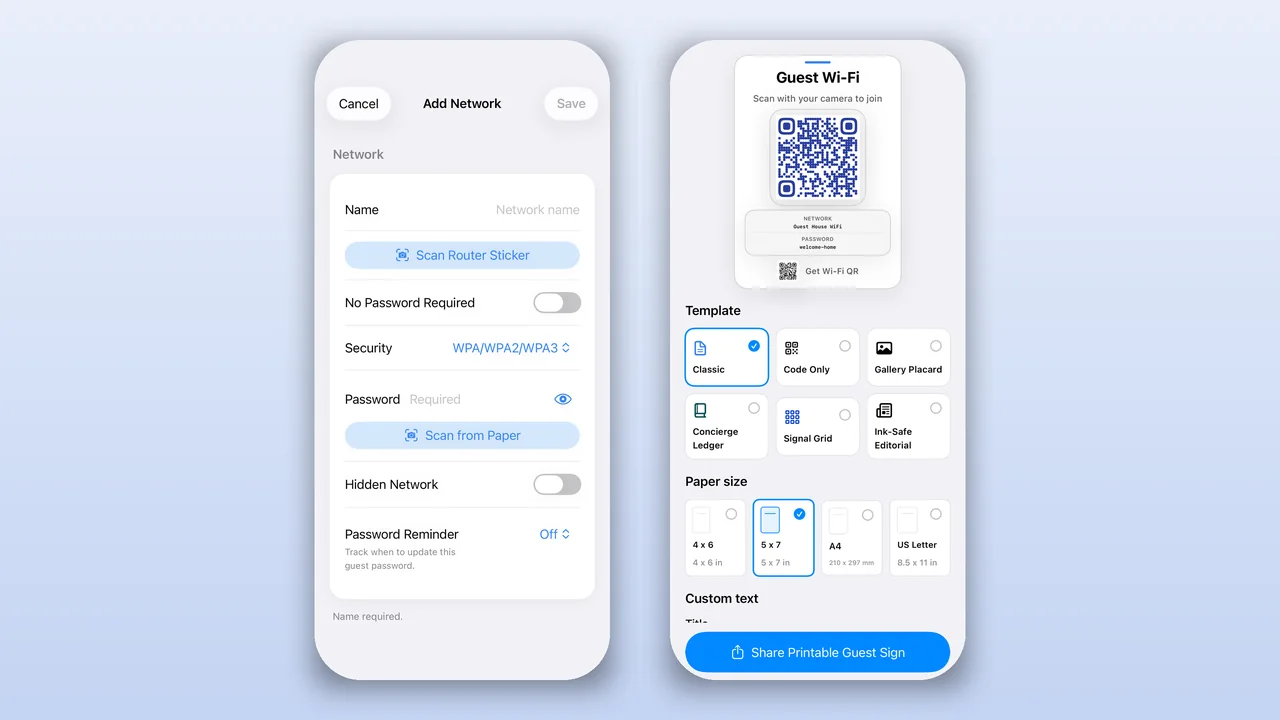
The network editor now has a Security picker. Most routers use WPA, WPA2 or WPA3, and that is the default. Older routers that still use WEP now get a code that works too. If a network has no password, turn on No Password Required.
The editor also checks what you type and tells you what is wrong, right under the field:
- A network name can be up to 32 bytes. Emoji and Arabic letters use more than one byte each, so the app counts bytes, not letters.
- A WPA password needs 8 to 63 characters, or 64 hex digits.
- A WEP key needs 5 or 13 characters, or 10 or 26 hex digits.
- If another saved network already uses the same name, you see a warning, but you can still save.
A QR code with a wrong password looks fine on paper and fails at the door. These checks stop that before you print. Networks that use a company login (enterprise Wi-Fi) also no longer get a code that cannot work.
Guest signs that fit long names and passwords
Router passwords can be long, and some network names are long too. Before 1.7, a long value could run past the edge of a sign. Now the text gets smaller, step by step, until it fits. If it is still too long, it wraps to the next line.
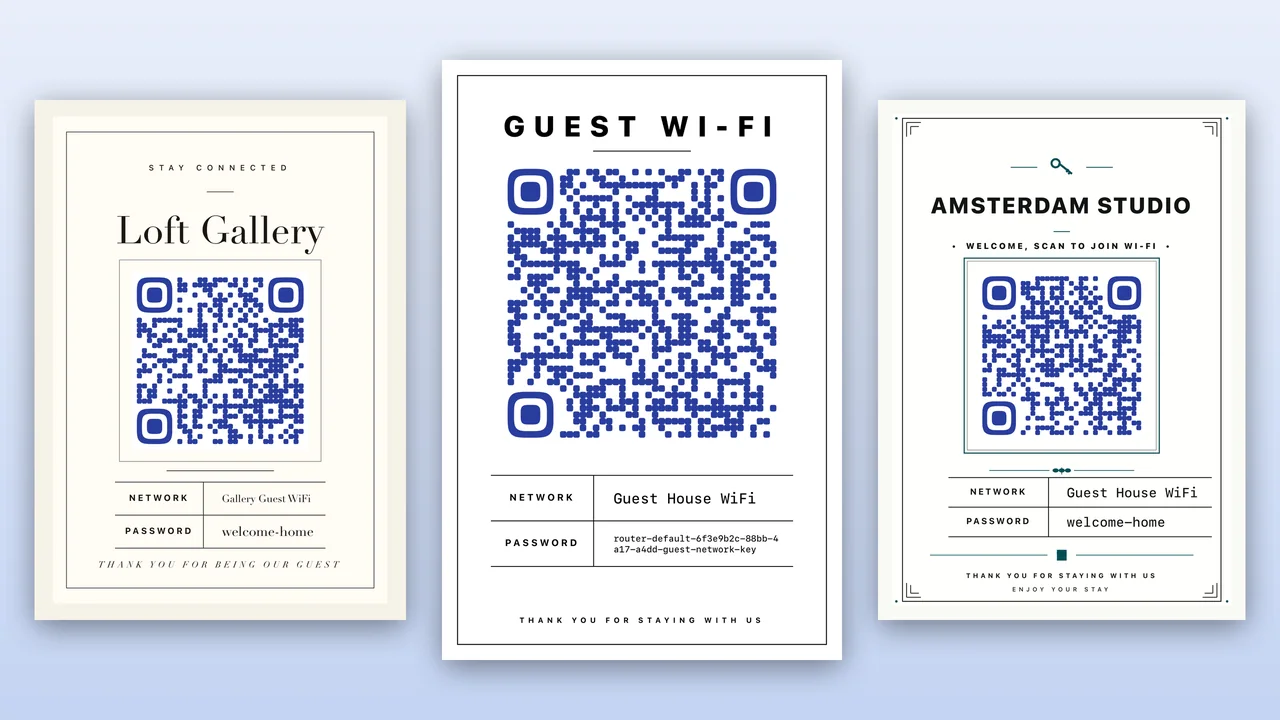
This works on all four paper sizes, 4 × 6 in, 5 × 7 in, A4 and US Letter, and in all six templates: Classic, Code Only, Gallery Placard, Concierge Ledger, Signal Grid and Ink-Safe Editorial. The middle sign in the picture at the top has a long router password on a 4 × 6 card.
Print from the share sheet
Tap Share Printable Guest Sign, then choose Print in the share sheet. In earlier versions, Print could fail because the sign file was gone before the printer read it. The app now keeps the file until sharing is done. The button also waits while the sign updates, so you never share an old version after you change the text.
Better router-sticker reading, now with Arabic labels
Tap Scan Router Sticker and point the camera at the label on your router. The app reads the text on your iPhone, finds the network name and the password, and shows them to you to check before it fills the form.
- It now reads stickers laid out as a table, where the label and the value are on separate lines.
- It knows more labels, such as SSID, Network Name, Network Key and WPA2 Key, plus German, French and Arabic labels such as اسم الشبكة and كلمة المرور.
- It skips lines it should not use, such as admin login, IP address and serial number.
- If you cancel the camera, you go back to the editor and keep what you typed.
Guest passwords stay yours
Before 1.7, iOS could offer to save a guest Wi-Fi password in the Passwords app, as if it were a website login. The password field now tells iOS not to do that. The QR images and sign PDFs that the app makes for sharing are also deleted the next time you open the app.
VoiceOver, large text and Arabic
- VoiceOver reads each template and paper card as one item and says which one is selected.
- Scanned passwords are not read aloud.
- At the largest text sizes, editor controls stack and wrap instead of being cut off.
- Arabic sign titles and paper size units now display correctly, and sign text follows the direction of the language.
Smaller things you may notice
- Search results now have Edit and Print actions.
- When you delete a saved network, you can undo it.
- If camera access is off, the app shows you how to turn it on in Settings.
- Delete in a hidden password field removes a whole emoji, not part of it.
- If saved data is damaged, the app recovers your list instead of starting empty.
Price
Wi-Fi QR is free, with no in-app purchases, no ads and no account. Your networks stay on your device. It runs on iPhone and iPad with iOS 17 or later.
How to update
If automatic updates are on, your iPhone installs Wi-Fi QR 1.7 by itself. You can also open the App Store, find Wi-Fi QR, and tap Update. Questions or ideas? Write to me through Wi-Fi QR support.